
VUMC Infor is the workforce scheduling system used by Vanderbilt University Medical Center employees. Formerly known as VandyWorks, Infor Workforce Management helps eligible staff view schedules, plan time off, trade shifts and manage scheduling activities through a secure employee login.
TL;DR
- VUMC Infor is the new name for the former VandyWorks scheduling system.
- Employees access it through Single Sign-On using their VUMC credentials, with multi-factor authentication when required.
- Workday and Vanderbilt Health Hub are separate employee resources for HR tasks and general workplace information.
What Is VUMC Infor?
VUMC Infor is a web-based workforce management system used by Vanderbilt University Medical Center (VUMC) to support employee scheduling and staffing activities. It replaced the name VandyWorks while continuing the system’s scheduling role.
VandyWorks had been used since 2006 by nursing and several non-nursing departments across VUMC. The system supports scheduling processes that help employees and managers coordinate staffing requirements.
According to VUMC Infor official Workforce Management website, employees can use the platform for activities such as:
- Viewing work schedules
- Planning time off
- Self-scheduling when enabled
- Trading shifts
- Reviewing assigned shifts
- Supporting department staffing arrangements
The available functions can depend on an employee’s department, job role and assigned permissions. Not every employee necessarily has access to every scheduling feature.
How Do You Log In to VUMC Infor?
Employees can access VUMC Infor through the official Workforce Management website at https://wfm.app.vumc.org. The system uses Single Sign-On, which connects employees to the organisation’s secure authentication process.
Follow these general steps:
- Open the official VUMC Infor Workforce Management login page.
- Select the available employee sign-in option.
- Enter your authorised VUMC login credentials when prompted.
- Complete multi-factor authentication if requested.
- Follow the on-screen instructions to reach your Workforce Management account.
VUMC announced the transition from VandyWorks to Infor Workforce Management in April 2024. The official instructions also explain that employees should use the updated website rather than an old VandyWorks browser bookmark.
For employees accessing the system away from VUMC Wi-Fi or VPN, multi-factor authentication is required. The exact sign-in screen may change as the organisation updates its authentication systems.
What Login Credentials Are Required for VUMC Infor?
Employees generally need their VUMC Infor account credentials to access Medical Center resources. The Infor system uses Single Sign-On, so users should follow the credentials requested on the official sign-in screen.
VUMC’s April 2024 workforce management instructions state that the Infor WFM login uses the employee’s VUMC email address rather than the older VUMC ID as the username.
Employees should also understand the difference between a VUMC ID and a VUMC Infor. These are separate identities used for different Vanderbilt organisations and applications.
If you have access to both Vanderbilt University and Vanderbilt University Medical Center systems, make sure you select the correct identity for the application you are opening.
Never share your password or multi-factor authentication approval with another person.
What Can Employees Do Through VUMC Infor?
VUMC Infor provides scheduling-related tools that help employees and managers organise work responsibilities. Its features are designed to support staffing coordination across participating departments.
1. View Work Schedules
Employees can use the scheduling system to review assigned shifts and see when they are expected to work.
Depending on their department’s configuration, the schedule may display shift dates, start times, end times, job information and team assignments.
This makes it easier for employees to check upcoming responsibilities and plan their availability.
2. Plan Time Off
The system supports time-off planning for eligible employees VUMC Infor. Staff can use the available scheduling functions to submit or coordinate requests according to departmental rules.
A submitted request should not automatically be considered approved. Employees should check the request status and follow their department’s time-off procedures.
3. Trade Shifts
Shift trading allows eligible employees to coordinate schedule changes with other staff members.
However, shift exchanges may be subject to approval requirements, staffing levels and department policies. Employees should confirm that a change has been accepted in the system before relying on it.
4. Use Self-Scheduling
Some departments allow employees to participate in self-scheduling. This gives eligible staff an opportunity to provide scheduling preferences within the rules established by their department.
Self-scheduling does not necessarily mean employees VUMC Infor can select any shift they want. Staffing needs and scheduling policies still apply.
5. Support Department Staffing
Managers and authorised scheduling staff can use workforce management tools to coordinate coverage and review staffing arrangements.
These functions help departments organise schedules while following applicable VUMC staffing policies.
How Do You Check Your Employee Schedule?
Employees can check their assigned shifts through the schedule calendar in Infor Workforce Management. The available calendar options depend on the system configuration and the employee’s permissions.
A typical process is:
- Sign in to the official Infor WFM website.
- Open the Employee Self Service or scheduling section available to your account.
- Select the schedule calendar.
- Review the displayed shifts and dates.
- Use the available calendar controls to move between weeks or months.
VUMC training materials describe a schedule calendar that can display scheduled shifts, approved time off and days when an employee is not scheduled.
If a shift looks incorrect or is missing, contact your department’s scheduler or manager. Do not assume that an old printed schedule reflects the latest approved changes.
What Is the Difference Between VUMC Infor, Workday and Vanderbilt Health Hub?
VUMC Infor, Workday and Vanderbilt Health Hub are different workplace systems. They support separate employee needs, so using the correct platform can save time.
| Platform | Main purpose | Typical employee use |
| Infor Workforce Management | Workforce scheduling | Shifts, time-off planning and shift trading |
| Workday | HR and employee services | Employee self-service and HR-related tasks |
| Vanderbilt Health Hub | Organisation-wide intranet | Workplace news, resources, links and announcements |
Infor Workforce Management
Infor is primarily concerned with employee scheduling and staffing activities. It is the platform employees should look for when they need to review shifts or use supported scheduling features.
Workday
Workday is a separate cloud-based system used for HR and employee services. VUMC Infor published guidance identifies it as a platform employees can access through a web browser.
Its employee self-service functions are separate from the scheduling tools provided by Infor.
Vanderbilt Health Hub
Vanderbilt Health Hub is the organisation’s intranet, introduced on March 31, 2025. It provides access to workplace news, commonly used resources, quick links and information such as cafeteria menus.
The Hub can also help employees find links to other workplace systems.
What Is Vanderbilt Health Hub and How Does It Help Employees?
Vanderbilt Health Hub is an employee-focused intranet designed to make workplace information easier to find. It uses SharePoint-based technology and brings together resources from different parts of Vanderbilt Health.
The Hub provides access to:
- Organisation news and events
- Commonly used workplace resources
- Quick links to employee actions
- Workday-related links, including PTO requests
- Cafeteria menus
- Information and announcements for the health system
Employees can access the Hub through supported workplace browsers, desktop shortcuts and Microsoft applications such as SharePoint and Teams.
It is important not to confuse the Hub with Infor. The Hub helps employees find workplace information, while Infor handles workforce scheduling.
How Can You Fix Common VUMC Infor Login Problems?
Most login problems involve incorrect credentials, authentication issues, browser sessions or account access. Employees should check these basic points before requesting technical support.
Incorrect username: Confirm that you are following the current VUMC login instructions. The 2024 WFM migration guidance specifies the VUMC email address rather than the older VUMC ID.
Forgotten password: Use the official AccessVUMC identity management service to reset or manage your account password.
MFA problems: If you cannot complete multi-factor authentication, check your registered authentication method and follow VUMC Infor official setup instructions.
Old bookmarks: Replace saved VandyWorks links with the current Infor WFM address: https://wfm.app.vumc.org.
Browser problems: Try opening the official site in an updated browser. Clearing browser history or using a private browsing window may help with certain authentication-session problems.
If the issue continues, contact the VUMC IT Help Desk rather than using an unofficial login website.
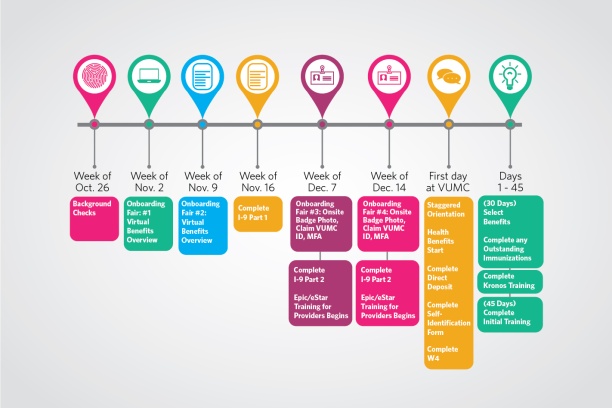
How Can New VUMC Employees Get Account Access?
New VUMC employees generally need to claim their Medical Center account before accessing protected workplace systems. The official AccessVUMC service provides account-claiming and identity-management options.
The process includes:
- Visit the official AccessVUMC account page.
- Follow the instructions for claiming a new employee account.
- Set up the required password.
- Enrol in multi-factor authentication.
- Follow the organisation’s login guidelines for individual applications.
VUMC explains that a VUMC ID and password are required for most Medical Center network resources.
Employees should complete the onboarding instructions provided by their department and contact the IT Help Desk if their account has not been activated.
Is VUMC Infor Safe to Use?
VUMC Infor is an official workforce management application provided for authorised Vanderbilt Medical Center users. Employees should access it through the official VUMC website and follow the organisation’s security requirements.
A few simple precautions can help protect an employee account:
- Check the website address before entering credentials.
- Never share your password or MFA approval.
- Avoid signing in through suspicious emails or third-party pages.
- Sign out when using a shared computer.
- Keep your browser and device updated.
- Report suspicious login activity to the appropriate IT team.
Employees should also avoid entering patient information or other confidential workplace data into unofficial websites.
Final Thoughts
VUMC Infor is an important scheduling resource for eligible Vanderbilt University Medical Center employees. Formerly known as VandyWorks, the platform supports schedule viewing, time-off planning, shift trading and other workforce management activities.
The official login address is https://wfm.app.vumc.org, and access is provided through the organisation’s Single Sign-On process. Employees may also need multi-factor authentication, particularly when connecting outside the VUMC Infor network.
Remember that Infor, Workday and Vanderbilt Health Hub serve different purposes. Understanding these differences makes it easier to find the correct workplace resource and avoid unnecessary login confusion.
Frequently Asked Questions
1. What is VUMC Infor?
VUMC Infor is the Infor Workforce Management system used by Vanderbilt University Medical Center for employee scheduling and staffing activities. It was previously known as VandyWorks.
2. What is the official VUMC Infor login website?
The official Infor Workforce Management website is https://wfm.app.vumc.org. Employees should use this address instead of outdated VandyWorks bookmarks.
3. Can employees check work schedules through VUMC Infor?
Yes. Eligible employees can use the system’s scheduling tools to review assigned shifts and other calendar information. Available features depend on departmental access and permissions.
4. What should I do if my VUMC Infor login is not working?
Check your VUMC credentials, MFA setup and saved login link. If the issue continues, contact the VUMC IT Help Desk at 615-343-HELP (4357) for assistance.





One Comment